When you log in to app.monstersms.ai, the dashboard is the first thing you see. It gives you a real-time snapshot of your SMS activity — campaigns, conversations, AI agents, and more — all in one place.
This guide walks you through every section of the dashboard so you always know what's happening with your messaging.
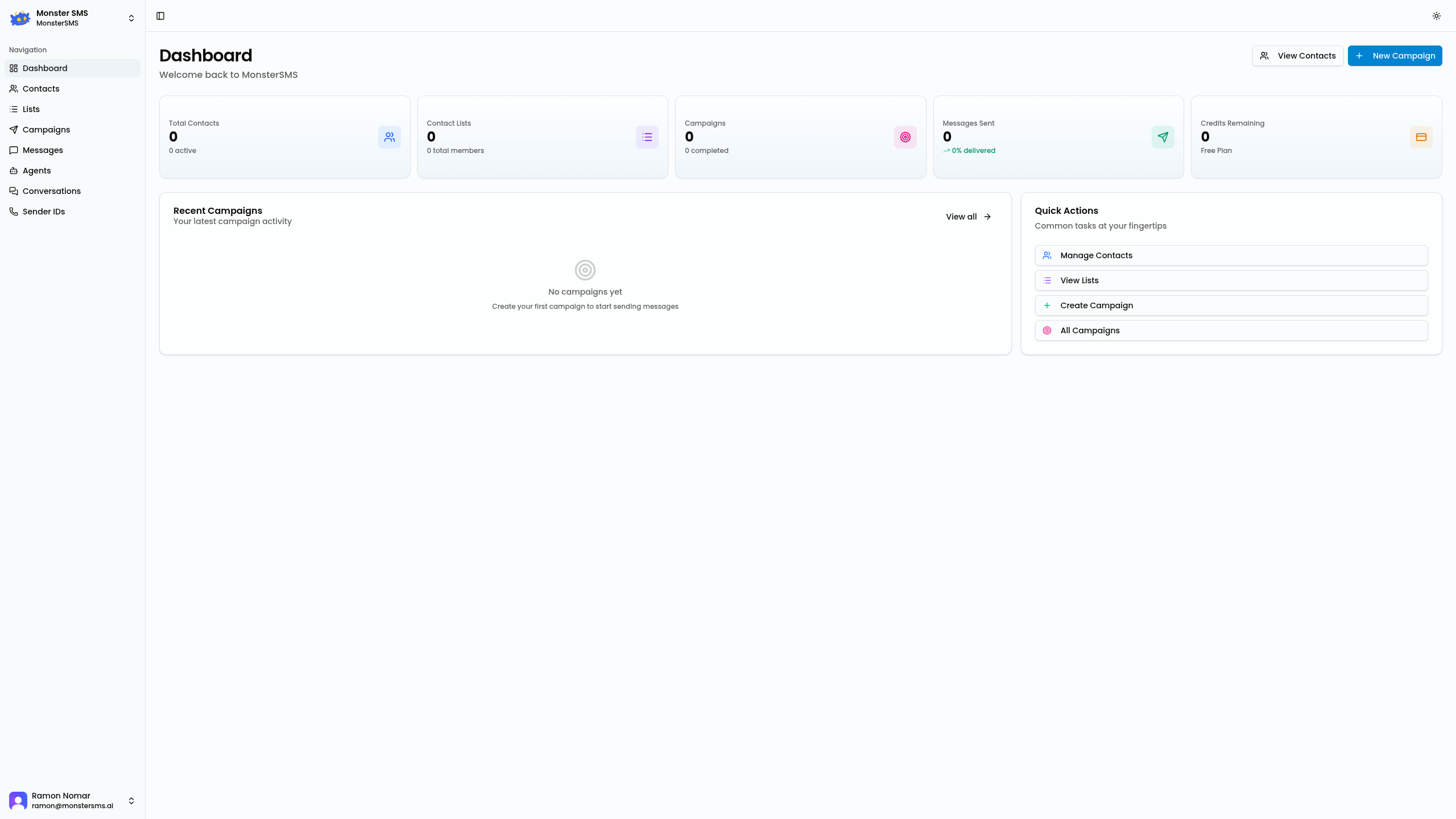
Key Metrics at a Glance
At the top of your dashboard you'll find four metric cards. These update in real time and give you an instant pulse on your account:
Messages Sent
This shows the total number of SMS messages sent from your account in the current billing period. One campaign to 500 contacts = 500 messages. This counter helps you track credit usage and stay on top of your monthly volume.
Active Campaigns
The number of campaigns that are currently live — either scheduled and awaiting send, or in the process of being delivered. Click this card to jump directly to your Campaigns list.
Conversations
The count of open two-way conversations — inbound messages from contacts that haven't been marked as resolved. A high number here means your team (or AI agent) has replies to attend to.
AI Agent Status
Shows how many AI agents are currently enabled and actively handling inbound messages. If an agent is paused or in test mode, it won't count here.
Recent Activity Feed
Below the metric cards, the activity feed shows a chronological log of everything that's happened in your account: messages sent, replies received, campaigns launched, new contacts added, and agent responses.
💡 Tip: The activity feed is sorted newest-first. If you're troubleshooting a delivery issue or checking whether a campaign fired, this is the fastest place to look.
Each activity entry shows:
- The event type (e.g., "Campaign sent", "Inbound message", "Contact added")
- The contact or campaign name involved
- The timestamp
- A clickable link to the relevant record
Quick-Action Buttons
In the top-right area of the dashboard (and sometimes as a floating action button on mobile), you'll find quick-action shortcuts:
New Campaign
Jump straight into the campaign composer. Choose your audience, write your message, and hit send — without navigating through menus.
Add Contact
Quickly add a single contact manually. Great for adding someone on the spot without doing a full CSV import.
Send Message
Open a new one-off message to any contact in your database. Useful for one-to-one replies that don't need a full campaign.
View Conversations
Go directly to the Conversations inbox to see and respond to inbound messages from your contacts.
Credit Balance
Your SMS credit balance is displayed in the top navigation bar, next to your account name. Each standard SMS costs 1 credit per 160 characters. MMS messages and messages over 160 characters cost more credits — your account settings show the exact credit rates.
⚠️ Low credit warning: When your balance drops below a threshold (set in your account settings), Monster SMS will send you an email alert. You can also enable auto top-up to ensure you never run out mid-campaign.
Navigation Sidebar
The left sidebar gives you access to every section of the platform:
- Dashboard — You're here
- Contacts — Your contact database
- Lists — Organise contacts into audiences
- Campaigns — Create and manage broadcast campaigns
- Messages — Inbound and one-to-one messages
- Conversations — All two-way threads
- AI Agents — Manage your automated responders
- Sender IDs — Register and manage sender names
- Settings — Account, billing, and API keys
💡 Tip: On mobile, the sidebar collapses into a hamburger menu at the top. Tap the ☰ icon to access all navigation items.
Ready to explore?
Log in to your Monster SMS account and start from the dashboard.
Go to Dashboard →