Every time a customer replies to one of your SMS messages, it shows up in Conversations. This is your unified inbox — all two-way SMS threads in one place, whether they were started by a campaign, a direct message, or an AI agent.
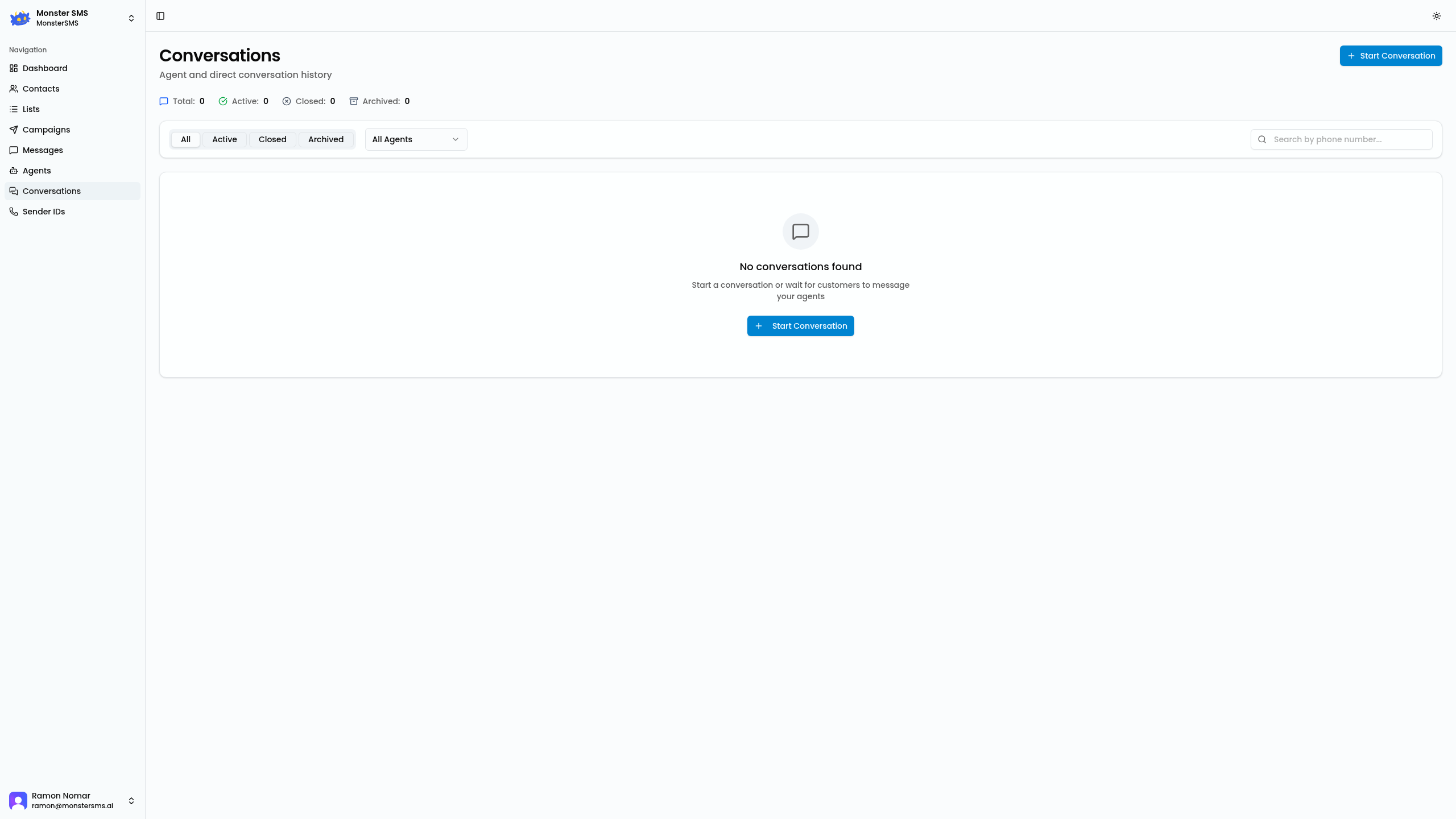
Understanding the Conversations view
The Conversations page shows every active thread between your business and your contacts. Each row displays:
- Contact name and number — Who you're talking to
- Last message preview — The most recent SMS in the thread
- Timestamp — When the last message was sent or received
- Status badge — Open, AI-handled, or Resolved
Filtering conversations
Use the filter tabs at the top to sort your conversations:
- All — Every conversation
- Open — Needs a human reply
- AI-handled — Your AI agent is managing this thread
- Resolved — Marked as closed
💡 Tip: Focus on the Open tab during business hours. AI-handled threads don't need your attention unless the agent escalates or the customer asks to speak to a person.
Replying to a conversation
Click any conversation to open the thread view. You'll see the full message history on the right. To reply:
- Click into the message box at the bottom of the thread
- Type your reply (160 characters = 1 SMS credit)
- Hit Send or press Enter
Your reply is sent immediately and logged in the thread.
Taking over from an AI Agent
If an AI agent is handling a conversation and you want to step in:
- Open the conversation
- Click Take over — this pauses the AI agent for this thread
- Reply as normal
- When you're done, click Resume AI to hand back to the agent, or Resolve to close the thread
Resolving a conversation
Once a customer enquiry is sorted, mark it as resolved to keep your inbox clean. Click the Resolve button in the top right of the thread. Resolved conversations can be reopened if the customer replies again.
🏆 Best practice: Resolve conversations the same day. A clean Open inbox means nothing falls through the cracks.
See all your conversations
Log in and check your Conversations inbox to stay on top of every customer reply.
Open Conversations →