A campaign is a broadcast message sent to a list of contacts at once. This guide walks you through every step — from choosing your audience to hitting send — including personalisation tags, scheduling, compliance requirements, and credit management.
Before You Send: Checklist
- ✅ You have a contact list with at least one contact
- ✅ You have sufficient SMS credits in your account
- ✅ All contacts on the list have consented to receive messages from you
- ✅ Your message includes your business name (required by the Spam Act)
- ✅ Your message includes an unsubscribe option (e.g., "Reply STOP to unsubscribe")
Creating a Campaign
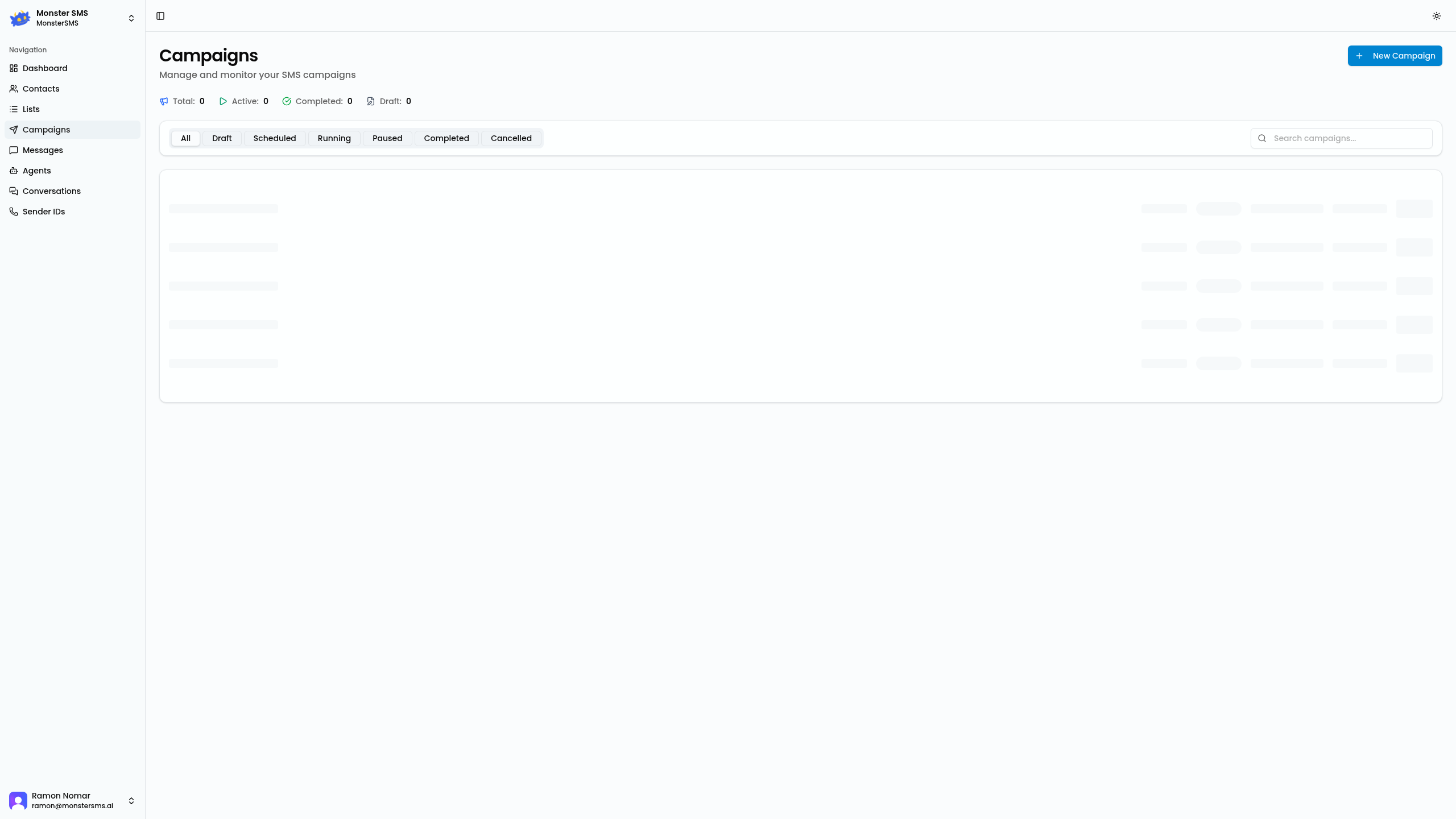
Go to Campaigns
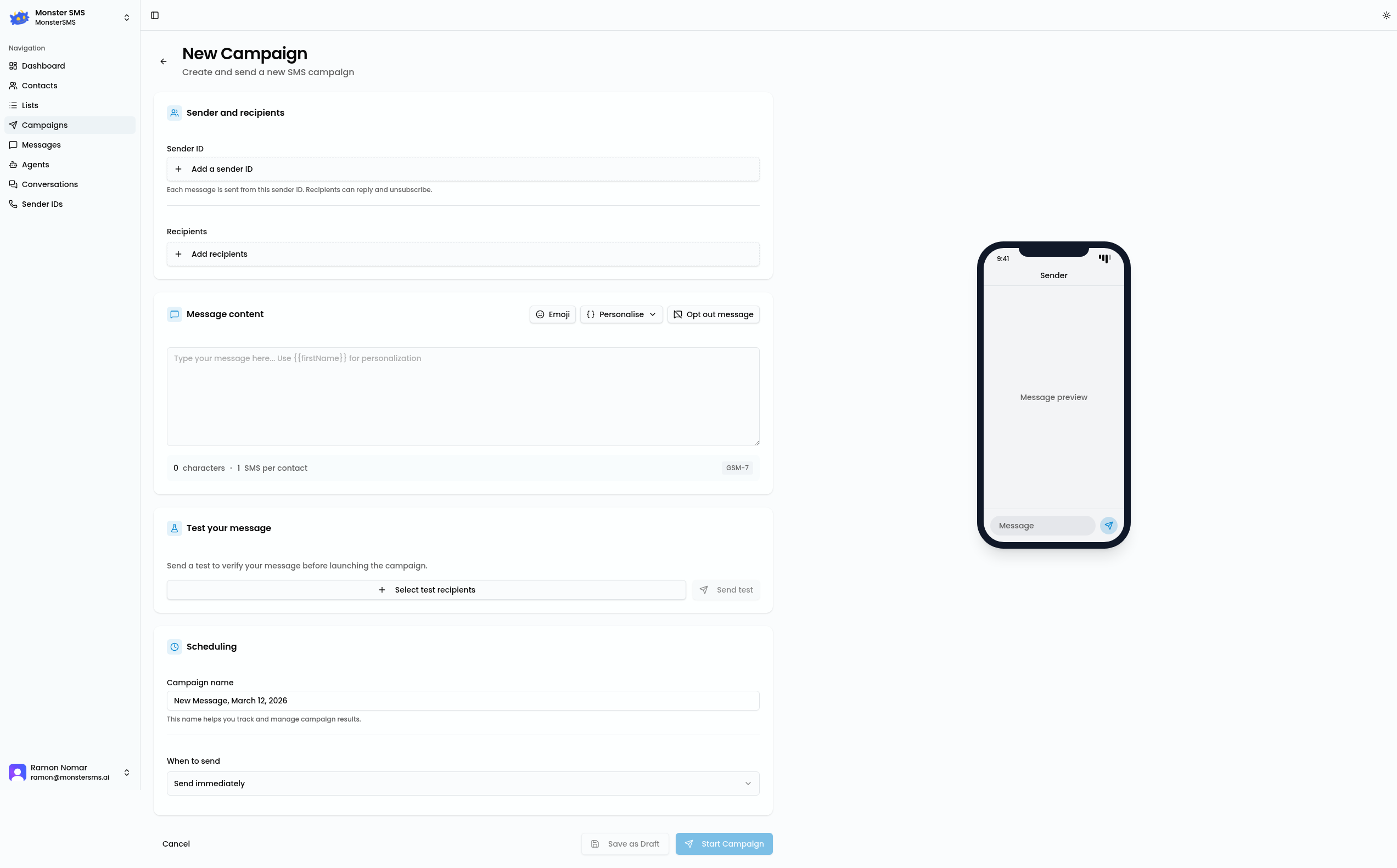
Click Campaigns in the left navigation, then click + New Campaign.
Name your campaign
Give the campaign an internal name (not visible to recipients). Good names include the date and purpose: "Feb Sale Promo — Sydney List" or "Appointment Reminder — March 2026".
Choose your audience
Select one or more lists. The recipient count updates automatically as you select lists. Contacts appearing in multiple lists are automatically deduplicated.
Choose message type: SMS or MMS
SMS — Text only, up to 160 characters per segment. Standard cost. MMS — Includes an image or media file, up to 1600 characters. Higher credit cost. Most campaigns use standard SMS for cost-effectiveness.
Choose your sender
Select the sender ID or phone number the message will appear to come from. This can be a registered sender name (e.g., "MonsterSMS") or a dedicated number. See the Sender IDs guide for more detail.
Compose your message
Type your message in the message editor. The character counter shows how many characters you've used and how many SMS segments the message will consume. 1–160 characters = 1 SMS. 161–306 characters = 2 SMS (and costs 2 credits per contact).
Personalisation Tags
Make your messages feel personal by inserting contact data using personalisation tags. Tags are wrapped in double curly braces and get replaced with each contact's actual data when the message sends:
Example message using personalisation:
This would render for a contact named Sarah as:
⚠️ Fallback values: If a contact doesn't have a first name, the tag will render as blank, which can look strange ("Hi , your appointment..."). Make sure your contact list has names filled in, or use the tag sparingly.
The Compliance Footer
Under the Australian Spam Act 2003, commercial SMS messages must include:
- The sender's identity (who sent the message)
- An unsubscribe mechanism ("Reply STOP to opt out" is the standard)
Monster SMS includes a compliance footer option in the campaign composer. When enabled, it appends the unsubscribe instruction automatically — you just need to make sure your business name is included in the message body.
💡 Best practice: Always include your business name at the end of every message, even when using a registered sender name. Example: "...Reply STOP to opt out. YourBusinessName"
Previewing Your Campaign
Before sending, use the preview options:
- Live preview — See how the message will look on a mobile phone, with personalisation tags rendered using a sample contact from your list
- Send test — Send the message to your own mobile number so you can check formatting, links, and rendering before the full send
Checking Your Credits
The campaign composer shows an estimated credit cost before you send. The calculation is:
For example: 500 recipients × a 200-character message (2 segments) = 1,000 credits.
If you don't have enough credits, you'll see a warning. Top up your credits in Settings → Billing before proceeding.
Scheduling vs Sending Immediately
Send now
Select Send Now and click Send Campaign. The messages will start delivering within seconds. Large campaigns (50,000+ contacts) may take a few minutes to fully deliver.
Schedule for later
Select Schedule, then pick a date and time. Monster SMS will automatically send the campaign at the scheduled time. Scheduled campaigns appear in your Campaigns list with a "Scheduled" status badge.
Best practice — timing your sends: The best times to send SMS campaigns in Australia are Tuesday–Thursday, 10am–12pm or 2pm–4pm. Avoid sending after 9pm or before 8am — that's both courtesy and compliance. The Spam Act prohibits sending commercial messages at certain hours.
Tracking Campaign Results
After a campaign sends, click on it in the Campaigns list to see results:
- Delivered — Messages successfully delivered to handsets
- Failed — Messages that couldn't be delivered (invalid numbers, network errors)
- Unsubscribed — Contacts who replied STOP after receiving the campaign
- Replies — Inbound responses to this campaign
Ready to send your first campaign?
Sign up free and start reaching customers in minutes.
Start Free →