A Sender ID is the name or number that appears as the sender when your customers receive your SMS. In Australia, you can use a mobile number, a long number, or a registered alphanumeric name (like "MonsterSMS" or "YourBrand"). This guide explains each type and how to set them up.
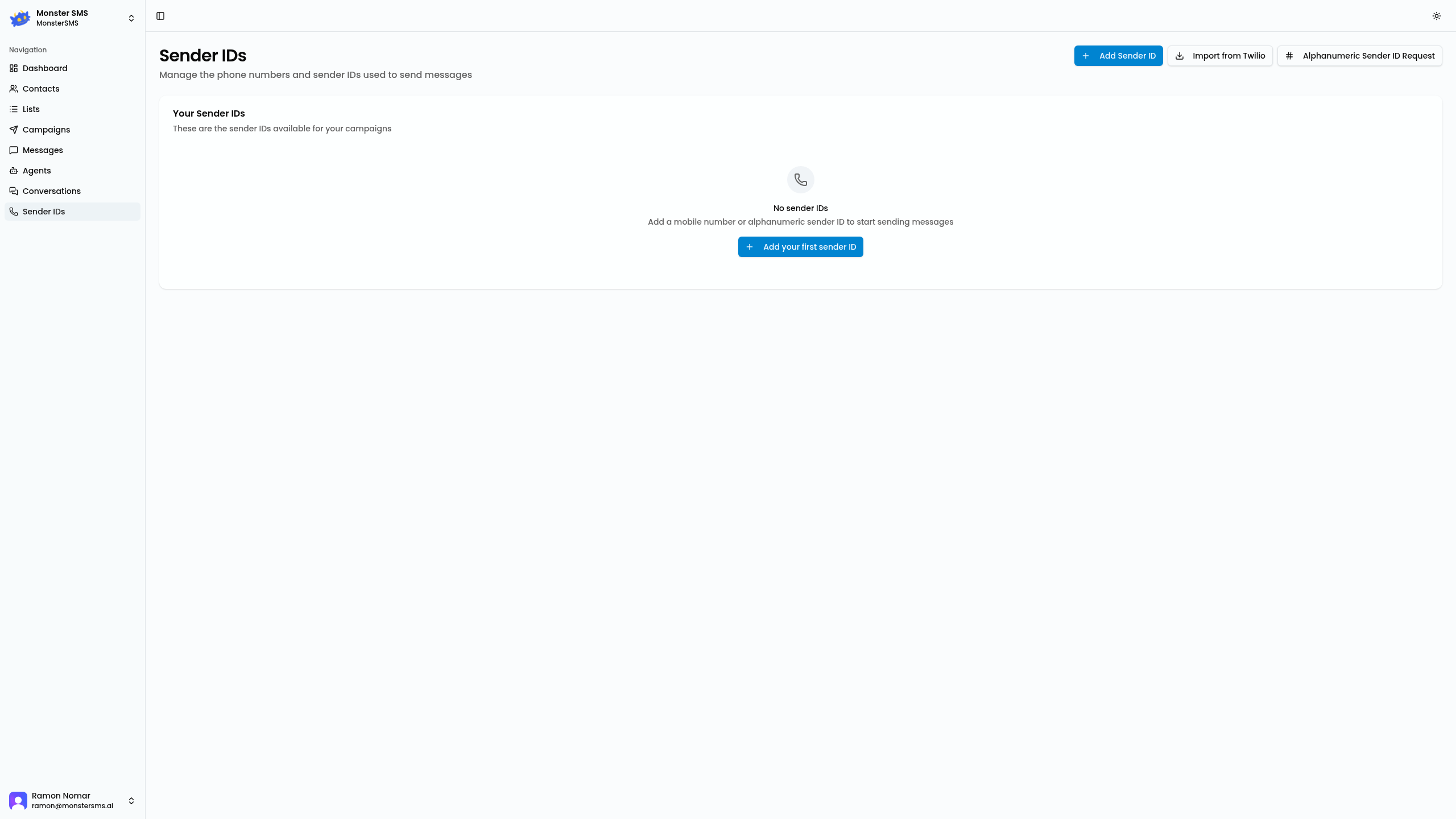
Types of Sender IDs
- Mobile number — A standard Australian mobile (04xx xxx xxx). Two-way SMS enabled. Customers can reply.
- Long number — A 10-digit number. Supports two-way messaging.
- Alphanumeric ID — A business name (e.g. "JoePlumbing"). One-way only — customers cannot reply. Must be approved.
- Twilio number — Import a number you already own in Twilio.
🇦🇺 Australian requirement: Alphanumeric sender IDs used for marketing must comply with the Spam Act 2003. Your business must be clearly identifiable and you must include an opt-out mechanism in your messages.
Adding a mobile number
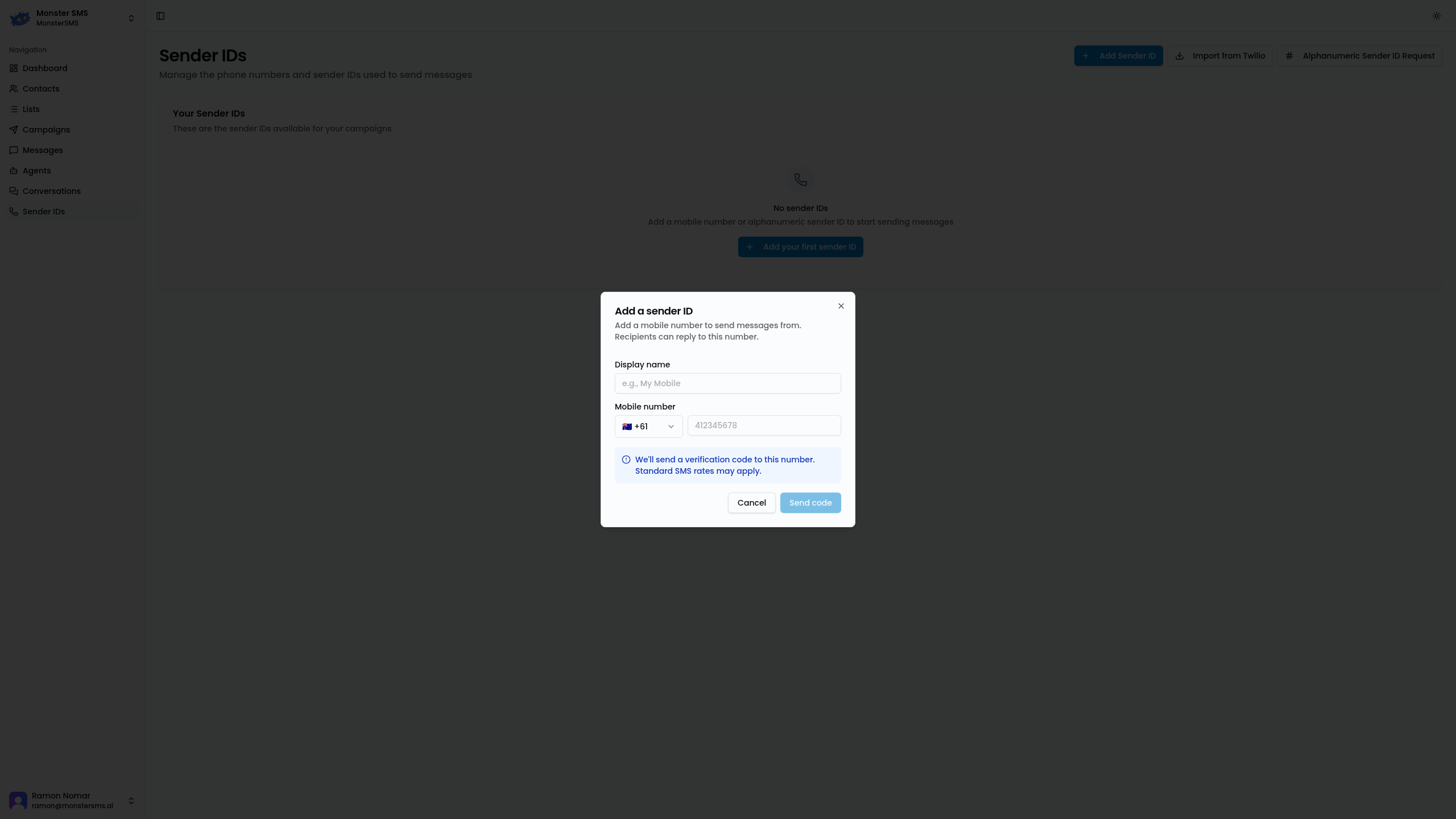
- Click Add Sender ID
- Give it a label (internal name, e.g. "Main Business Number")
- Select the country code (+61 for Australia)
- Enter the mobile number (without the leading 0 — e.g. 412 345 678)
- Click Send code — a verification SMS is sent to that number
- Enter the 6-digit code to verify ownership
Once verified, the number is active and ready to use in campaigns and agents.
Importing from Twilio
If you have existing numbers in Twilio, click Import from Twilio and enter your Twilio Account SID and Auth Token. Your numbers will be imported and ready to use in Monster SMS.
Requesting an Alphanumeric Sender ID
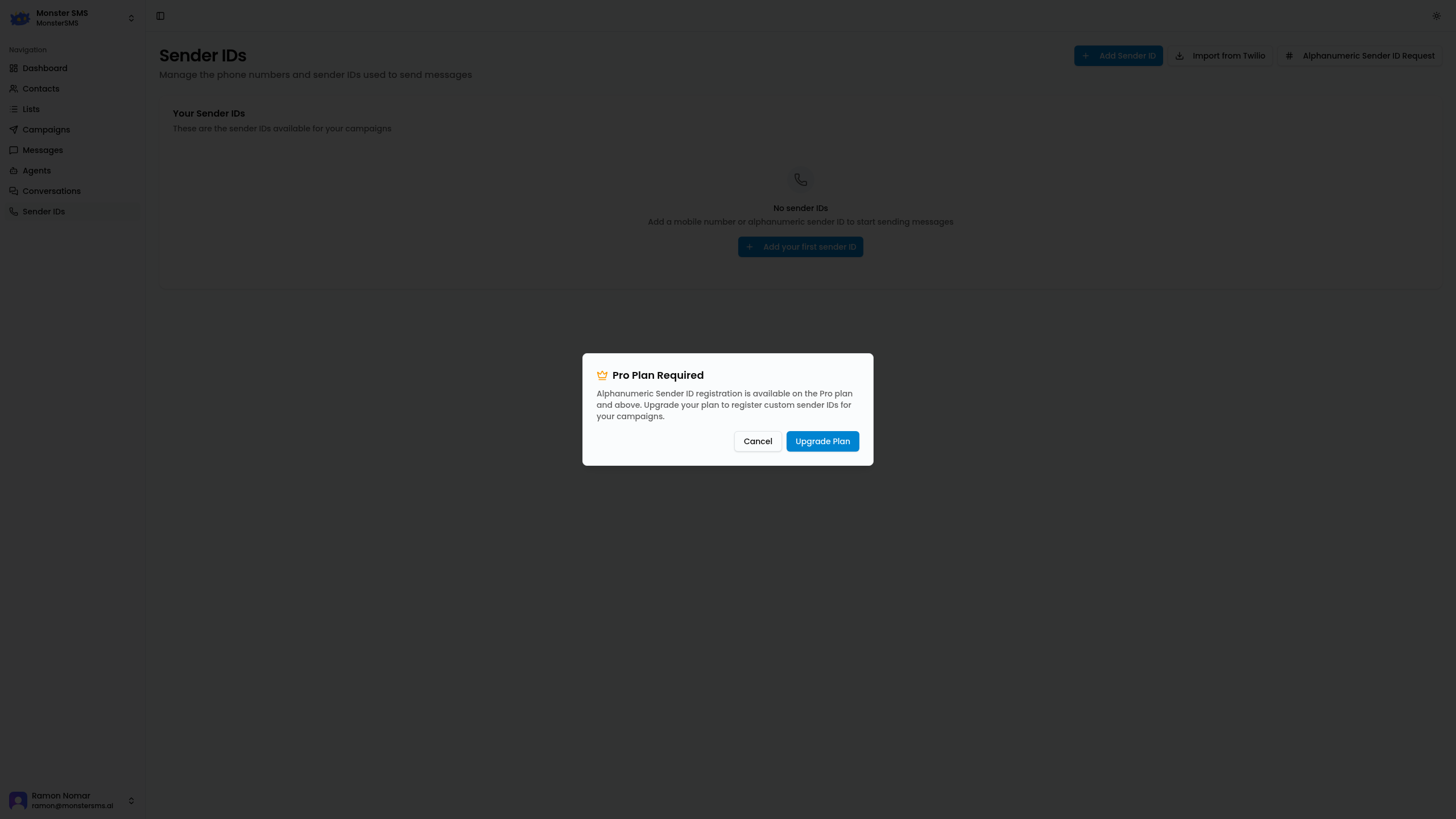
Alphanumeric IDs (business names) require approval and are available on paid plans. To request one:
- Click Alphanumeric Sender ID Request
- Enter your desired sender name (3–11 characters, letters and numbers only)
- Provide your business name and use case
- Submit the request — approval typically takes 1–3 business days
⚠️ Note: Alphanumeric sender IDs are one-way only. Customers cannot reply to these messages. For two-way conversations, use a mobile number.
Using a Sender ID in a campaign
When creating a campaign, click Add a sender ID in the campaign builder and select from your registered sender IDs. If you have multiple numbers, choose the one most relevant to the campaign audience.
Register your first sender ID
Add a number or business name so your customers know exactly who's messaging them.
Add Sender ID →