Monster SMS is more than a broadcast tool — it's a two-way messaging platform. When contacts reply to your campaigns, those replies land in your Messages inbox. This guide shows you how to view, respond to, and manage those inbound messages.
The Messages Inbox
Click Messages in the left sidebar to access your inbound SMS inbox. Here you'll see all messages received from your contacts, displayed as conversation threads — similar to how your personal phone shows texts.
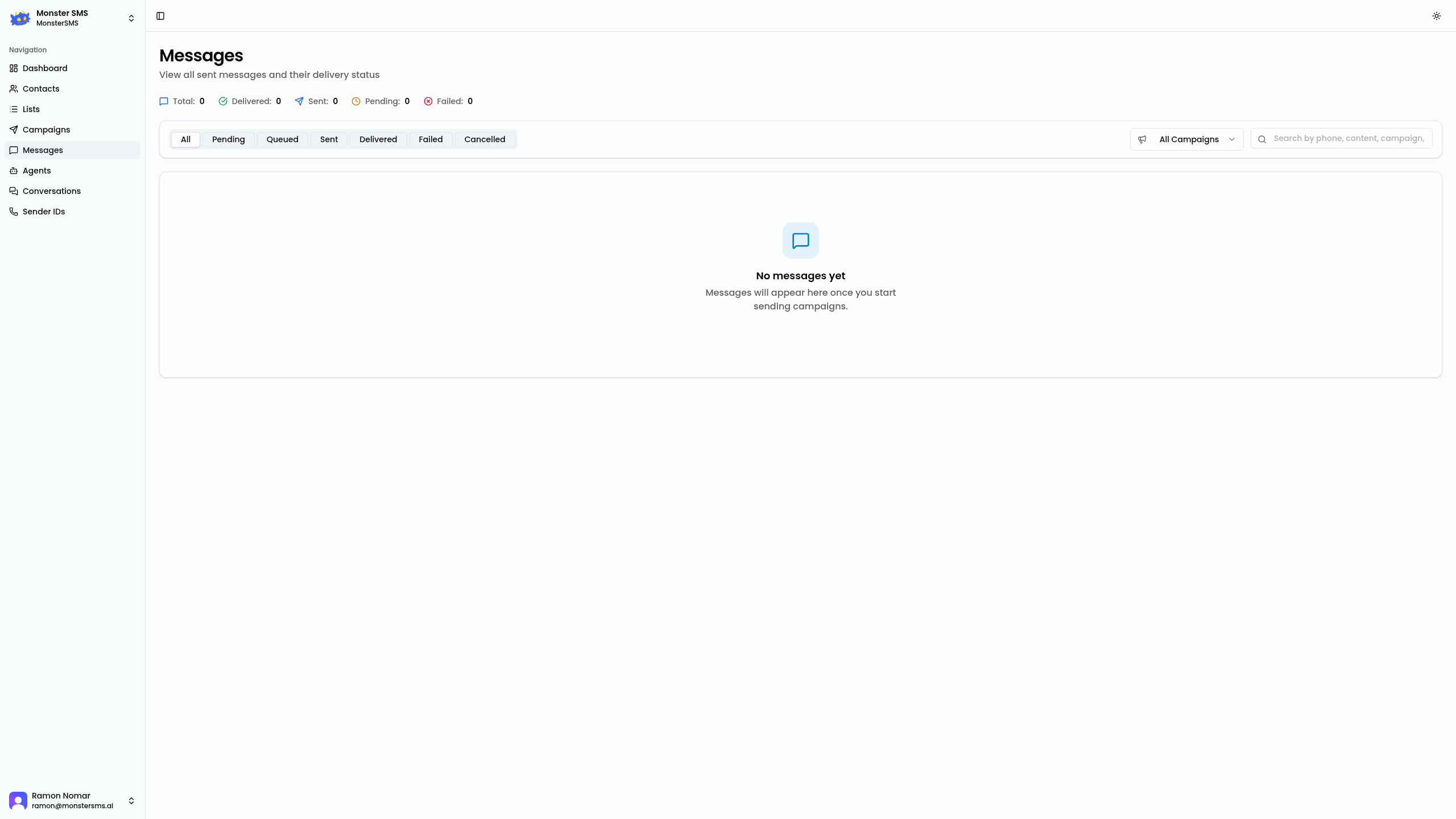
Each thread shows:
- The contact's name (or number if they're not in your contacts)
- The last message sent or received
- The timestamp of the last activity
- A status indicator (unread, open, resolved, or AI-handled)
Reading and Replying to Messages
Open a conversation
Click any thread in the Messages list to open the full conversation. You'll see the complete message history with this contact — sent and received — in chronological order.
Type your reply
At the bottom of the conversation, type your reply in the message box. The character counter shows how many characters you've used and the credit cost.
Send
Click Send or press Enter. Your reply will be sent immediately and appear in the conversation thread.
💡 Tip: Use Shift + Enter to add a line break without sending the message. This is helpful when composing multi-paragraph replies.
Conversation Threads
Monster SMS automatically groups all messages between you and a contact into a single thread. This means:
- When a contact replies to a campaign, their reply appears in the same thread as future messages to that contact
- You can see the full history of your relationship with each contact in one place
- If you send a manual message to a contact who has previously messaged you, it goes into their existing thread
Starting a New Conversation
To start a conversation with a contact who hasn't messaged you first:
Click "New Message"
Click the + New Message button in the top right of the Messages page.
Search for a contact
Type a name or mobile number to find the contact. You can also enter a number that's not in your contacts to message anyone directly.
Write and send
Type your message and click Send. This creates a new thread with the contact.
Marking Messages as Resolved
Once you've handled a conversation — answered a question, confirmed an appointment, resolved a complaint — mark it as resolved to keep your inbox clean.
To mark a conversation as resolved, open it and click the Resolve button (tick icon) in the top right of the conversation panel. Resolved conversations move out of the main inbox into the Resolved tab.
If a resolved contact messages you again, the conversation automatically re-opens and returns to your active inbox.
Unread Messages and Notifications
Unread messages appear with a bold indicator in the conversation list. The Messages icon in the sidebar shows a badge with the number of unread threads.
Monster SMS can also send you email notifications for new inbound messages. Enable this in Settings → Notifications.
Messages vs Conversations
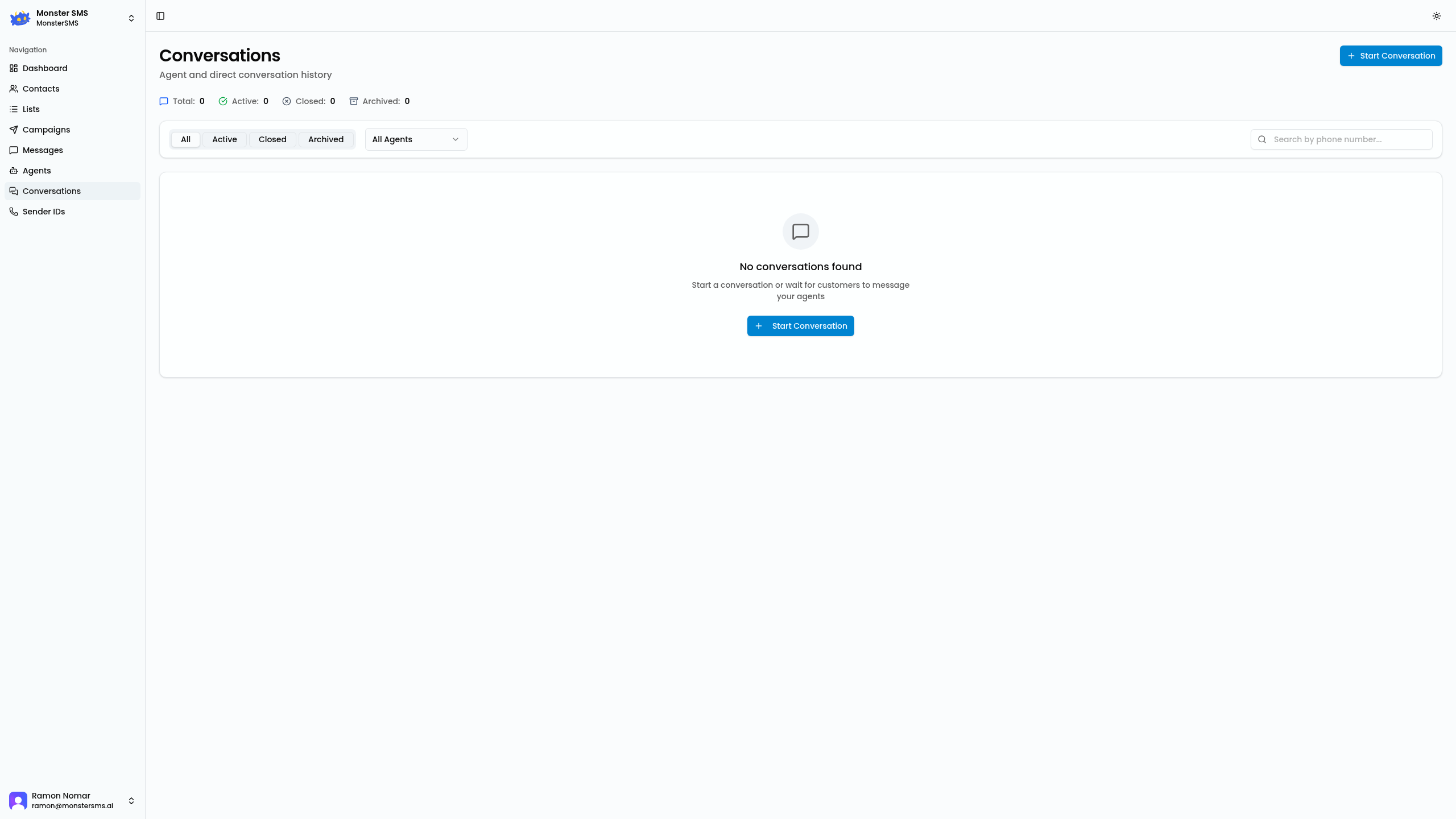
You may notice two sections: Messages and Conversations. Here's the difference:
- Messages — Your personal view of one-to-one threads. Good for individual replies and checking your own inbox.
- Conversations — A team-wide view of all inbound threads, with filtering, assignment, and notes. Use this when managing conversations as a team. See the Conversations guide for more detail.
💡 Auto-reply with AI: If you have an AI agent set up and assigned to your number, it will automatically reply to inbound messages — you won't need to manually respond to every thread. The agent's responses appear in the conversation thread too. See the AI Agents guide.
Start having real conversations
Monster SMS turns one-way broadcasts into two-way customer relationships.
Start Free →